Account Overview Action List
The Account Overview screen includes the phone number of the client, account balances, a contribution summary, KYC information and alerts.
Note:
An asterisk appears in the Pending column when there are any direct fund or term trades in a settled status for existing positions. This includes buy, sell, switch, and transfer trades, and it displays in the Account Holdings View, the Client Holdings View, and the Household Holdings View.
Transaction summaries for any holding can be viewed by clicking the Transactions tab. Security Master information, including price history, can be viewed for any security by clicking the symbol/code.
When there is a voluntary reorganization event with a status of either Active or Expiring for a security that has a positive, non-zero unit balance held in an account, the description of that security displayed will be prefaced by three 3 asterisks. The status refers to the event itself, rather than the event as it relates to the client's election.
The following are the account specific actions that can be performed from the Account Overview screen. Action items are listed in alphabetical order.
Action | Description |
|---|---|
Add or update account information | Select Additional Information from the More... drop-down list. See Viewing Additional Account Information. |
Add PAC information | |
Add SWP information | |
Advisor Portal | Button loads the URL configured in the Advisor Portal URL field of the Dealer screen - Dealer Compliance node in R•Broker Administrator for the dealer of the account in a new browser tab. The URL hyperlink matching the language of the R•Desktop session will be loaded. |
Buy instructions | Select Buy Instructions from the More...drop-down list. For more information, see Viewing Buy Instructions. |
Buy or sell an investment. | Click one of the icons in the Action column in the row of the investment  |
Commission/Fee Revenue | Click button to open the Client Commission/Fee Revenue dialog. For more information, see Client Commission/Fee Revenue. |
Deposit Instructions | Select Deposit Instructions from the More... drop-down list. See Adding Deposit Instructions. |
Display reorganization event information | Select Re-Org Events from the More... drop-down list. For more information, see Viewing Reorganization Events. |
Enter an order for the client. | Click  . See Working with Orders. . See Working with Orders. |
Generate ROR report | Select Print ROR from the More...drop-down list. An ROR report based on the selected account is generated. |
Generating an RDSP Transfer Reconciliation Report | Click the Tsf Recon Report button. The RDSP Transfer Reconciliation Report dialog appears. 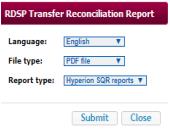 Select Language, File Type and Report Type, then click Submit. |
IPS Questionnaire | Click  . Opens the IPS Questionnaire screen. See Setting Up an IPS Questionnaire. . Opens the IPS Questionnaire screen. See Setting Up an IPS Questionnaire. |
Make a deposit or a withdrawal. | Click one of the icons in the Action column  for the client’s cash account. for the client’s cash account. |
MWROR | Click  . Opens the Account Money-Weighted ROR dialog where MWROR returns can be viewed for various time frames and the Account Money-Weighted ROR report can be launched where ROR date ranges and cutoff dates can be set. . Opens the Account Money-Weighted ROR dialog where MWROR returns can be viewed for various time frames and the Account Money-Weighted ROR report can be launched where ROR date ranges and cutoff dates can be set. |
Pending Residency Changes | Select Pending Residency Changes from the More... drop-down list. For more information, see Pending Residency Changes. |
Print portfolio | Click  . For more information, see Print Portfolio Details tab. . For more information, see Print Portfolio Details tab. |
Scheduled Sell | Select Scheduled Sell from the More...drop-down list. For more information, see Working with Scheduled Sell Records. |
Scheduled Switch | Select Scheduled Switch from the More...drop-down list. For more information, see Working with Scheduled Switch Records. |
Sell Instructions | Select Sell Instructions from the More...drop-down list. For more information, see Viewing Sell Instructions. |
Set up IPQ Questionnaire | Click  . Opens the IPQ Questionnaire screen. See Setting UP an IPQ Questionnaire. . Opens the IPQ Questionnaire screen. See Setting UP an IPQ Questionnaire. |
Setting up account restrictions | Select Account Restrictions from the More... drop-down list. For more information, see Viewing Account Restrictions. |
Sweep | |
TFSA Information | Select TFSA Information from the More... drop-down list. See Adding TFSA Information. |
View a list of fees related to the account. | Click  , or select Fees from the More... drop-down list. , or select Fees from the More... drop-down list. |
View a list of the client’s transactions. | Click the Transactions tab. |
View a transfer summary. | Select Transfers from the More... drop-down list. See Setting Up a Manual Transfer. |
View account documents | Select Account Documents from the More... drop-down list. See Viewing Account Documents. |
View account graph | Click  . . |
View account notes | Select Account Notes from the More... drop-down list. See Adding Account Notes. |
View account. | Click the link in the Account column for the desired account. The Account Overview screen appears. |
View client details | Select Client Overview from the More... drop-down list. See Updating Client Profile Details. |
View clipboard | Click  . Opens the Clipboard Output window where account and KYC information to be copied to a text editor. . Opens the Clipboard Output window where account and KYC information to be copied to a text editor. |
View compliance details. | Select Compliance Details from the More... drop-down list. See Viewing Compliance Information. |
View Instructions | Select Instructions Overview from the More... drop-down list. See Viewing Tax Form Information. |
View Loan/Collateral | Select Loan/Collateral from the More... drop-down list. See Viewing Loan/Collateral Details. |
View or add client related parties | Select Related Parties from the More... drop-down list. See Adding Additional Related Parties. |
View or change KYC details | Click  . See Adding an Account KYC. . See Adding an Account KYC. |
View tax forms | Select Account Tax Forms from the More... drop-down list. See Viewing Tax Form Information. |
View the order status for the client. | Click  . See Working with Orders. . See Working with Orders. |
Viewing asset allocation models | If there is asset allocation model for the account where the current system date is later than or equal to the Start date of the account Asset Allocation model and earlier than or equal to the End date of the account Asset Allocation model, click the Asset Allocation model hyperlink to view details. The Asset Allocation screen can also be accessed by selecting Asset Allocation from the More...drop-down list. |
Viewing RESP Information | Click the Plan Details button to open the RESP Information screen. |
 , or select
  , or select